GITKRAKEN Merge tool

Merge with foresight, not fear

GitKraken Desktop gives you a better way to handle Git merges. The Merge Tool shows side by side changes, prevents merge conflicts before pull requests, and offers AI suggestions you can review. Works with GitHub, GitLab, Azure DevOps, and Bitbucket in your version control flow.
Visual comparison of conflicting code changes in GitKraken’s merge conflict resolution tool. The interface displays side-by-side commits from the dev and merge-conflict branches, with an output pane below showing the resolved code, and options like “Auto-resolve with AI” to simplify conflict management.

From Git merge conflict chaos to team clarity

Built for flow, not firefights

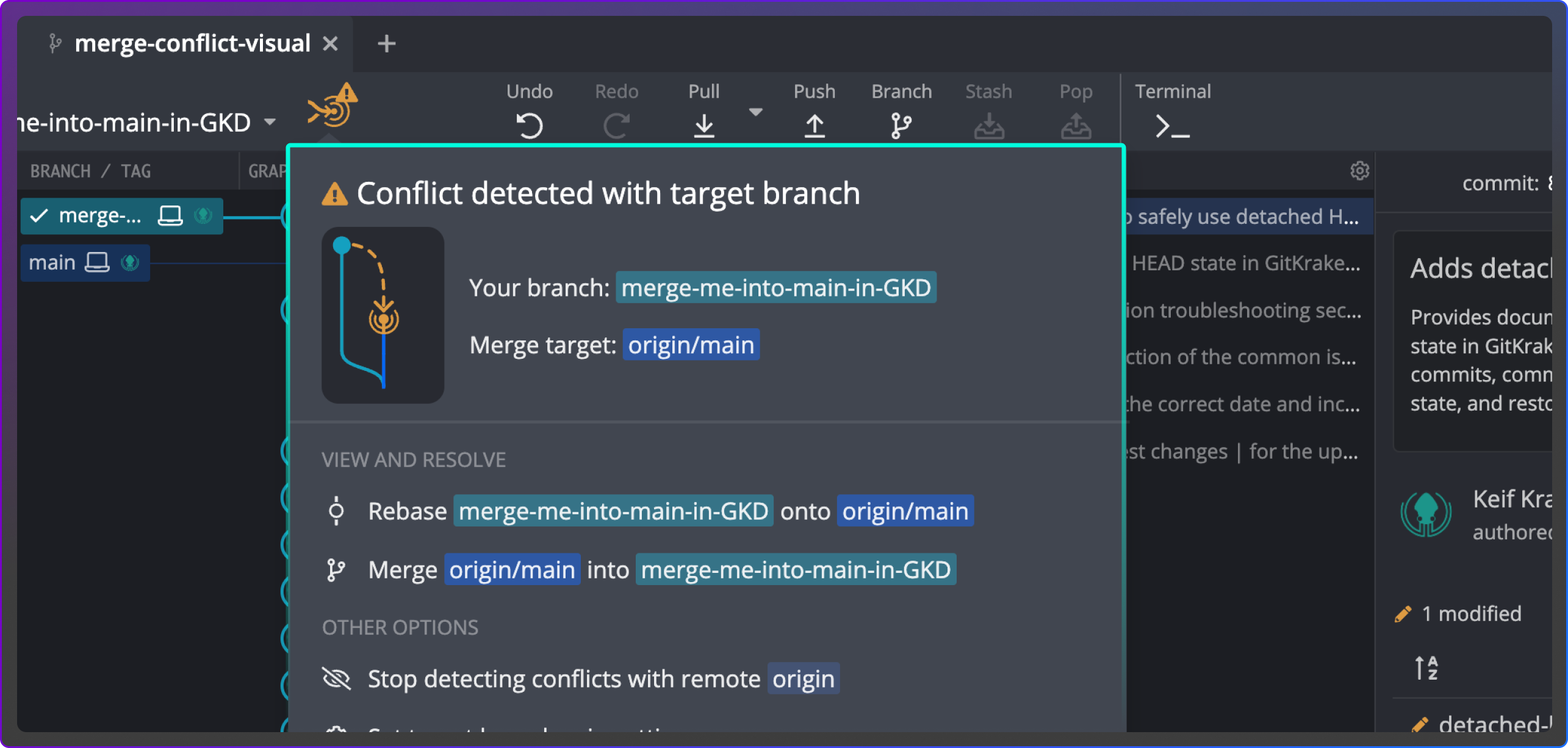
Popup in GitKraken Desktop showing a merge conflict detected between branches. The UI offers resolution options to rebase the feature branch onto the main branch or merge the main branch into the feature branch, with additional options to stop detecting conflicts or set a new comparison branch.

Detect Git merge conflicts before a pull request

GitKraken Desktop scans your branch against the target branch to catch conflicts early. You can see overlapping file changes before opening a pull request in GitHub, GitLab, Azure DevOps, or Bitbucket.

Many host tools only reveal conflicts after the PR is created, but GitKraken Desktop alerts you sooner to save wasted review cycles.

Resolve Git merge conflicts in GitKraken Desktop

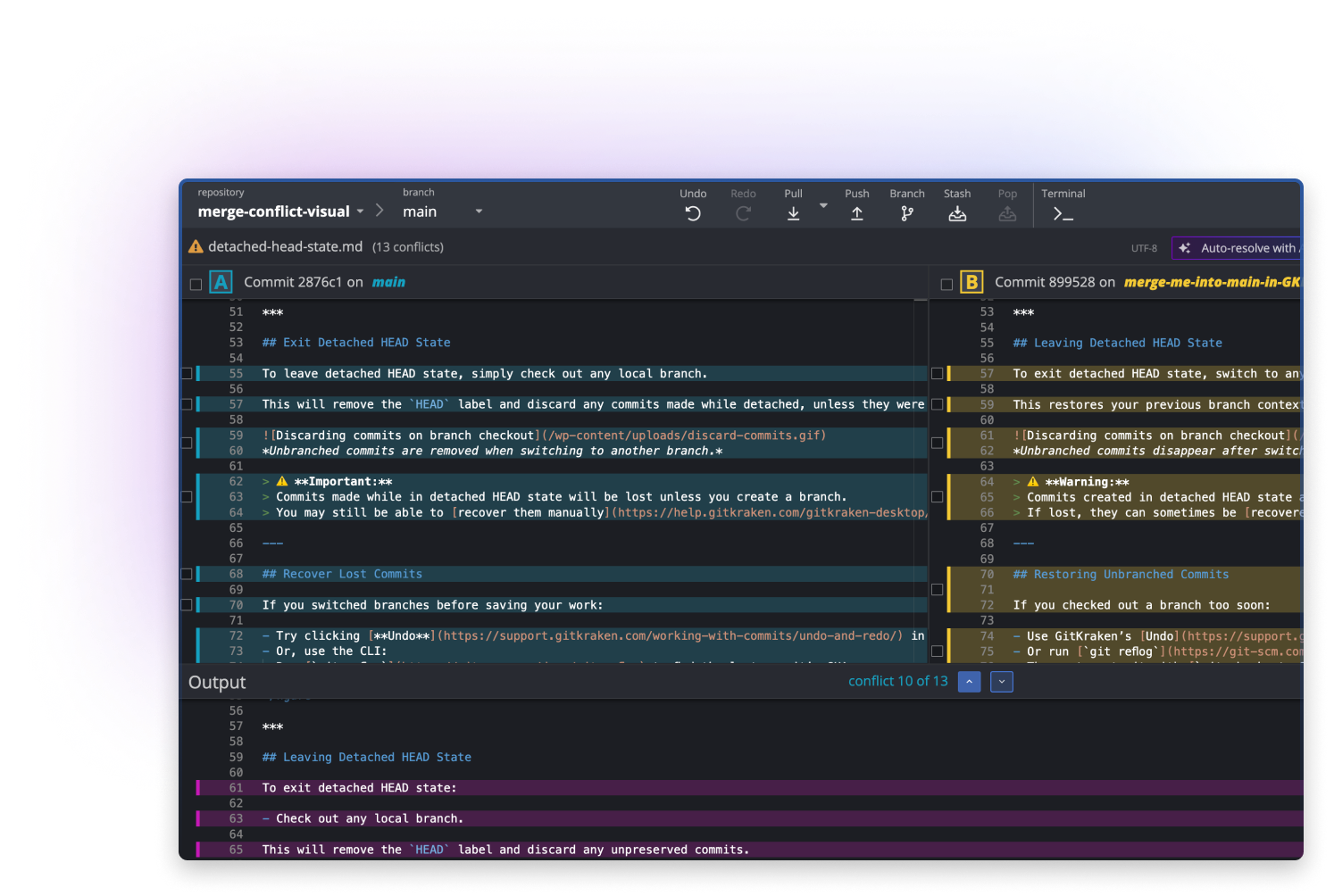
When a conflict appears, the Merge Tool in GitKraken Desktop opens with side-by-side views of your current and target branches, plus a live output. You can pick lines, edit code directly, and commit with confidence.

Compared to resolving conflicts in the Git CLI, the visual approach is faster, safer, and easier to review.

GitKraken Desktop merge conflict editor displaying conflicting changes in the detached-head-state.md file between the main and merge-me-into-main-in-GKD branches. The interface shows side-by-side diffs of each commit and the resulting output section, highlighting line-level differences and additions, with navigation controls for stepping through multiple conflicts.
GitKraken Desktop’s AI Merge Summary panel showing a breakdown of merge decisions with confidence scores. Each explanation details why the incoming branch’s changes were preferred, focusing on clarity, style, and alignment with context. Highlights include text comparisons, tag handling, and rationale for stylistic changes, aiding user understanding during conflict resolution.

AI-assisted Git conflict resolution with clear explanations

GitKraken Desktop’s AI helps you merge branches from GitHub, GitLab, Azure DevOps, or Bitbucket by suggesting conflict resolutions with explanations. Each recommendation shows why a line was chosen so you can review it clearly. Other tools apply changes without context; GitKraken Desktop gives you reasoning, so you can accept, adjust, or switch back to manual control.

Prevent merge conflicts across branches with Team View

Team View gives visibility into which teammates are working on which branches and files across your repositories. If two developers edit the same file, GitKraken Desktop warns you before it reaches a pull request.

Most Git workflows leave teams guessing until review, but Team View turns potential collisions into opportunities to coordinate early.

GitKraken Desktop Team View showing the “Docs Team” branch activity. Individual contributors are listed with status indicators, usernames, and avatars. Below, file changes are displayed by repository and path, including additions and deletions, with a warning symbol next to one file indicating potential issues or conflicts.
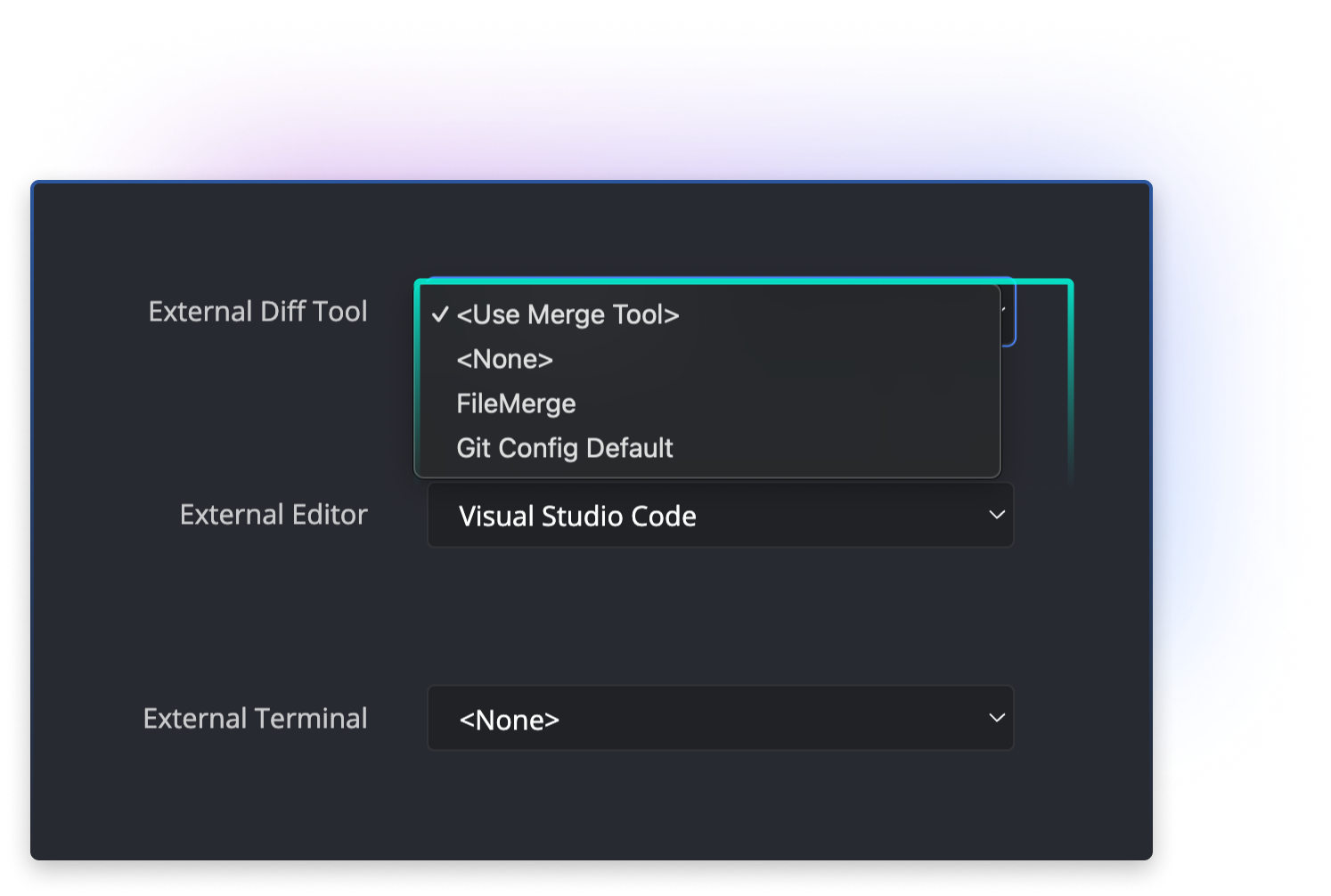
GitKraken Desktop settings panel showing configuration options for integrating external tools. Dropdown menus allow users to select an external diff tool (options include “Use Merge Tool,” “None,” “FileMerge,” and “Git Config Default”), an external editor (set to Visual Studio Code), and an external terminal (set to “None”).

Use external merge tools with GitKraken Desktop

Developers who prefer Beyond Compare, Araxis, P4Merge, or Kaleidoscope can launch those tools directly from GitKraken Desktop when conflicts appear. GitHub and GitLab web editors limit you to their own interface, but GitKraken Desktop integrates with your chosen setup while keeping your repositories consistent.

Connects across the GitKraken platform you use

GitKraken Desktop
Visual Git, conflict prevention, merge editor, and AI assists built in.
GitLens for IDEs
Bring Git intelligence to VS Code for faster reviews and confident edits.
GitKraken CLI
Unify tools and insights across teams. Reduce sprawl and level up fluency.
Issue Trackers
Tie branches and PRs to work. Keep status truthful without extra chores.

Resolve merge conflicts faster in GitKraken Desktop

Download free and merge with clarity, not chaos.

This is just one pillar of our DevEx platform

Explore other GitKraken tools that help devs and dev leaders to Git efficiently and intelligently, so they can focus on what matters most.
Automations
AutomationsIncrease consistency across teams
Go To Automations →
Cloud Patches
Cloud PatchesShare early, merge swiftly
Go To Cloud Patches →
Codemaps
CodemapsVisualize your code
Go To Codemaps →
Code Suggest
Code SuggestFaster reviews, fewer restrictions
Go To Code Suggest →
Launchpad
LaunchpadFOne view, zero distractions
Go To Launchpad →
Security Controls
Security ControlsEnsure team security & compliance
Go To Security Controls →
Insights
InsightsBuild smarter, ship faster
Go To Insights →
Merge Tool
Merge ToolMerge conflicts, disarmed
Go To Merge Tools →

Frequently Asked Questions

The GitKraken Desktop Merge Tool is a built-in Git conflict editor designed to make version control safer and more visual. Merge conflicts normally occur when two branches in Git modify the same line of code, and Git cannot automatically combine them. Instead of showing raw conflict markers, GitKraken Desktop opens a side-by-side editor with a live merged output, so you can resolve conflicts cleanly.

Steps:

  1. Attempt a merge, rebase, or cherry-pick in GitKraken Desktop.
  2. Conflicted files appear in the Commit Panel.
  3. Click a conflicted file to launch the Merge Tool.
  4. Compare “current” vs. “target” changes, select lines or edit directly.
  5. Save, mark resolved, and commit.


Example: If two teammates edit settings.json in different branches on GitHub, GitKraken Desktop will flag the conflict. Opening the Merge Tool lets you combine both edits or choose one version before committing.

Conflict Prevention detects merge conflicts before you open a pull request in GitHub, GitLab, Azure DevOps, or Bitbucket. By scanning your branch against the target, it identifies overlapping file changes early, saving you wasted review cycles and broken builds.

Steps:

  1. Open your repo in GitKraken Desktop.
  2. Watch for the conflict alert icon.
  3. Click the alert to see affected files, authors, and actions.
  4. Choose to share a Cloud Patch, push updates, or proactively rebase.
  5. Invite teammates into GitKraken Desktop to avoid future collisions.


Example: While working on auth.ts, GitKraken Desktop alerts you that Joey has already changed the same file in develop. You rebase immediately, preventing a PR conflict later.

Auto-resolve with AI in GitKraken Desktop provides first-pass conflict resolutions with explanations. Instead of guessing, you review a suggested merge result and understand the reasoning before committing changes to your Git repository.

Steps:

  1. Open a conflicted file in the Merge Tool.
  2. Click Auto-resolve with AI.
  3. Review the proposed resolution and the explanation.
  4. Accept, tweak lines manually, or reset to manual merge.


Example: Two branches in GitLab add new keys to a JSON config. GitKraken Desktop’s AI merges the keys, flags a deprecated one, and explains why so you can finalize the resolution confidently.

Team View in GitKraken Desktop helps prevent merge conflicts by showing active branches and changed files across your team. This is especially useful in collaborative Git workflows on GitHub, GitLab, Azure DevOps, or Bitbucket.

Steps:

  1. Select your team from the dropdown in Team View.
  2. Review teammates’ checked-out branches and modified files.
  3. Look for potential conflict icons on shared files.
  4. Coordinate with teammates before creating pull requests.
  5. Set your own status (Active/Away) for visibility.


Example: You see two teammates both editing userService.js. You sync with them to decide merge order, avoiding PR conflicts downstream.

Yes. GitKraken Desktop integrates with popular external merge tools like Beyond Compare, Araxis, P4Merge, and Kaleidoscope. This allows you to resolve merge conflicts using your preferred setup while still managing your Git workflow in GitKraken.

Steps:

  1. Open Preferences > General in GitKraken Desktop.
  2. Select your external merge tool.
  3. Ensure its command-line integration is installed.
  4. When conflicts occur, open them directly in the external tool.


Example: You configure Araxis as your external merge tool. When a large XML conflict appears in your Bitbucket repo, you launch Araxis directly from GitKraken Desktop to resolve it.